
The board
The board is where you organize tasks. In Volli, each task is a ticket. Its five fixed columns show the ticket’s state. Start a chat separately from the ticket workspace.
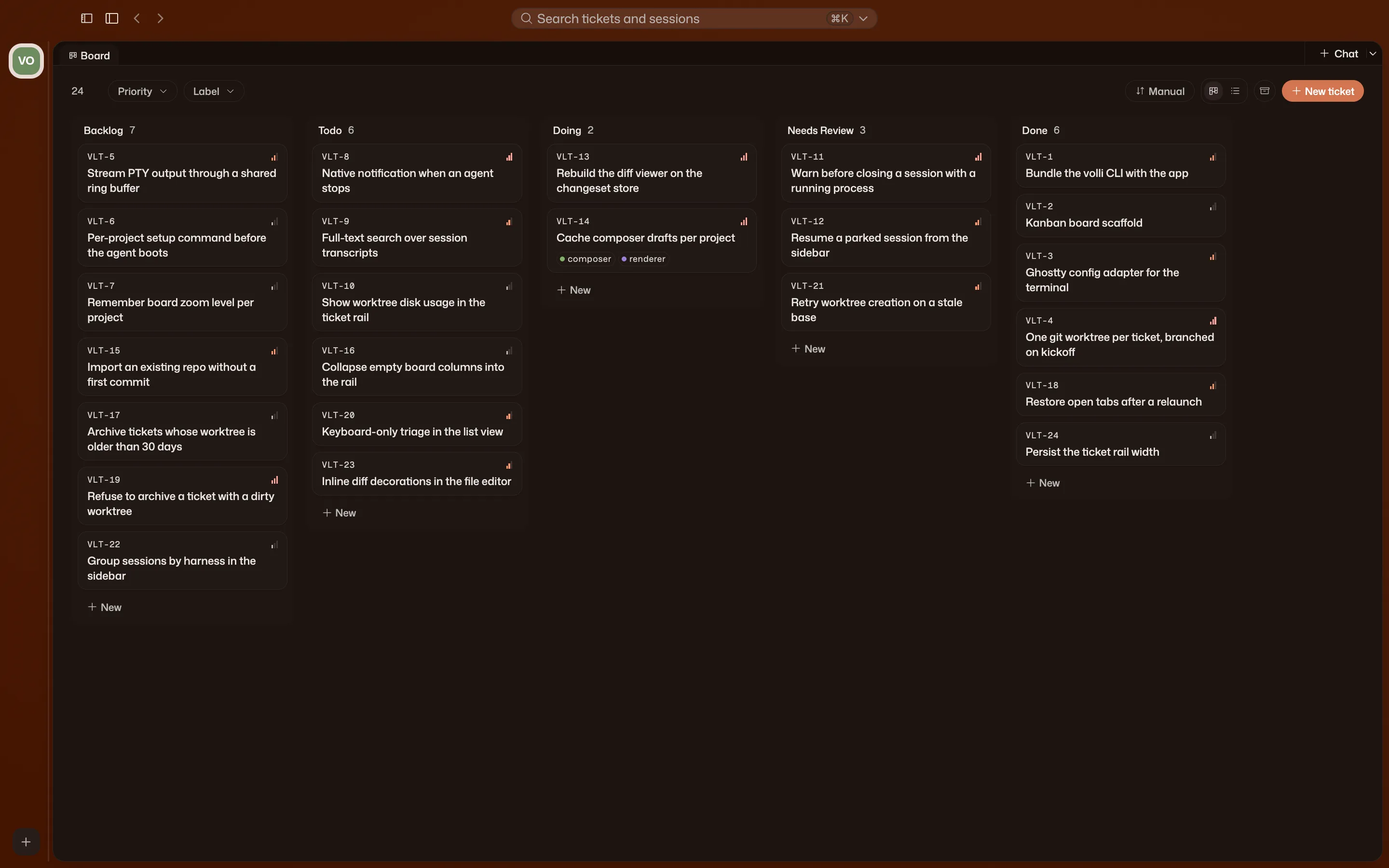
The columns
Section titled “The columns”Backlog. Work you’ve written down but aren’t committing to yet. Nothing runs here.
Todo. Work you intend to do next. Nothing runs here either.
Doing. Work is active. Move a ticket here when implementation starts, then open its workspace to start or return to a chat.
Needs Review. The ticket is ready for you to inspect its Change Set and decide what happens next.
Done. Finished. Volli keeps the ticket and branch. After the configured retention period, it can reclaim a clean worktree folder when no pull request is open and no work is running there.
The board records task state; it does not control chat lifetime. A ticket chat stays openable after the ticket moves.
List view
Section titled “List view”The board button next to the ticket count switches between Board and List. Board is the kanban layout above; List lays the same tickets out as rows instead of cards, grouped by the same five columns. Both views share the same filtering and sort order, so switching between them never changes which tickets you see or the order they’re in.
Filtering and sorting
Section titled “Filtering and sorting”The board header carries a Priority and, once a project has labels, a Label filter chip. Each opens a checklist, and you can select more than one value in it: picking two priorities shows tickets matching either. Clear appears once a filter is active and resets it.
The sort control next to the filters picks how each column orders its tickets: Manual (the order you left them in by dragging), Priority, Created, Updated, or Title. Every key but Manual has an independent Ascending/Descending toggle; Manual ignores it, since a drag order only goes one way. Switching to a different key and back to Manual restores the hand-arranged order, because sorting by a field never touches it.
Free-text search isn’t in this header. It’s part of the command palette
(⌘K), which searches tickets and sessions across every project.
What moves a ticket
Section titled “What moves a ticket”Two things move tickets, and they don’t have equal authority.
You. Drag a card, or run
volli ticket move yourself. Agents use
the same command — a move is always an explicit act, whoever makes it.
System lifecycle handling. Volli can react to a terminal session that exited, stalled, or was interrupted.
Session signals are not on this list on purpose. volli session blocked
raises attention on the exact session that called it, with the agent’s
--reason as the words you see — it flags, it never moves. volli session done records the session’s outcome in its own ledger and nothing more: an
agent may not declare its own ticket ready for review.
Manual moves win
Section titled “Manual moves win”If you move a ticket while its agent is still finishing, your move stands. A lifecycle event that arrives afterward won’t undo it.
For example: pull a ticket out of Doing because the agent is going the wrong way, and a stale “session ended” de-escalation landing a second later won’t shuffle the ticket again behind you.
The ticket context menu
Section titled “The ticket context menu”Right-click a card for the fastest way to act on it without a drag or the CLI. The menu offers:
- Move to a column: the same move as a drag, without the drag.
- Priority: set it to low, medium, or high. The current priority carries a checkmark.
- Resume last session: shown only when the ticket has a resumable session. Reopens it in the ticket’s workspace.
- Remove worktree…: deletes the worktree’s folder on disk and keeps the branch. Disabled while any of the ticket’s sessions are still running. If the worktree has uncommitted work, Volli asks again before it lets you discard it.
- Archive: see Archiving below.
Tickets
Section titled “Tickets”A ticket carries a title, a Markdown body, a priority, labels, and a display
ID like VC-12. The body matters most once an agent is involved: it’s the
scope of the work and the instruction the agent starts from.
Priority is low, medium, or high. Labels are project-scoped records with their own colors, so the same label means the same thing across every ticket in a project.
Set priority from a card’s context menu, or from Properties on the ticket workspace’s Now rail. Labels have no context-menu entry; set them from the same Properties section, or when you create the ticket, from the composer’s Labels chip. Typing a name that doesn’t exist yet and pressing Enter creates that label for the project, so there’s no separate “manage labels” screen.
Comments
Section titled “Comments”Every ticket workspace has a comment feed under its Activity section. Post
one from the box at the bottom (⌘Enter submits) and it renders as Markdown.
You can edit or delete your own comments; an edited comment is marked
“edited” next to its timestamp.
Each comment is attributed to whoever posted it: you or a Session. Only your own comments carry edit and delete controls. Volli doesn’t let you alter what a Session posted.
History
Section titled “History”Every ticket keeps an append-only event log. Volli adds entries and never rewrites them, so the history stays accurate even after the ticket’s title, body, or column changes.
Each event records who caused it: you, a session, or automation. Volli derives that attribution itself, so an agent can’t log something as though you did it.
Read a ticket’s history with
volli ticket events.
Archiving
Section titled “Archiving”Archiving a ticket takes it off the board and keeps everything else: its history, its branch, and its worktree. Reach every archived ticket in a project from the archive icon in the board header. From there, Restore puts a ticket back on the board, and Delete permanently removes it and its full history for good. It’s the one genuinely destructive action in this flow, and the only one that asks you to confirm it can’t be undone.
Retention and archive prompts
Section titled “Retention and archive prompts”Volli watches every worktree ticket’s pull request in the background. This
requires gh, the GitHub CLI, on your PATH. It offers Archive & clean in
two cases: the pull request merged, in any column, or the ticket has spent the
configured retention period in Done with no open pull request. Neither case
archives the ticket by itself.
The prompt appears in the ticket workspace’s Now rail, under the repository summary. The button that normally reads Push updates or View PR changes to Archive & clean. Clicking it removes the worktree and then archives the ticket. If the worktree has uncommitted work, the action refuses and leaves the ticket on the board.
The Done retention period also governs automatic worktree reclamation. Once a ticket has spent that long in Done, Volli can remove its clean worktree folder when no pull request is open and no work is running there. The ticket remains on the board, and its branch, commits, and pull-request URL remain available. Volli sends a notification when it reclaims a folder.
Two ways to turn a prompt down. Keep worktree exempts the ticket from both archive prompts and automatic worktree reclamation until you remove the pin. Dismiss clears the current archive prompt for this launch; Volli can offer it again after the next launch. Both actions live in the same menu as Archive & clean.
Volli checks every worktree ticket about once a minute. If gh fails (not
installed, not authenticated, offline), Volli backs off: it doubles the wait
after each consecutive failed check, up to 15 minutes, then retries
automatically without surfacing an error toast.