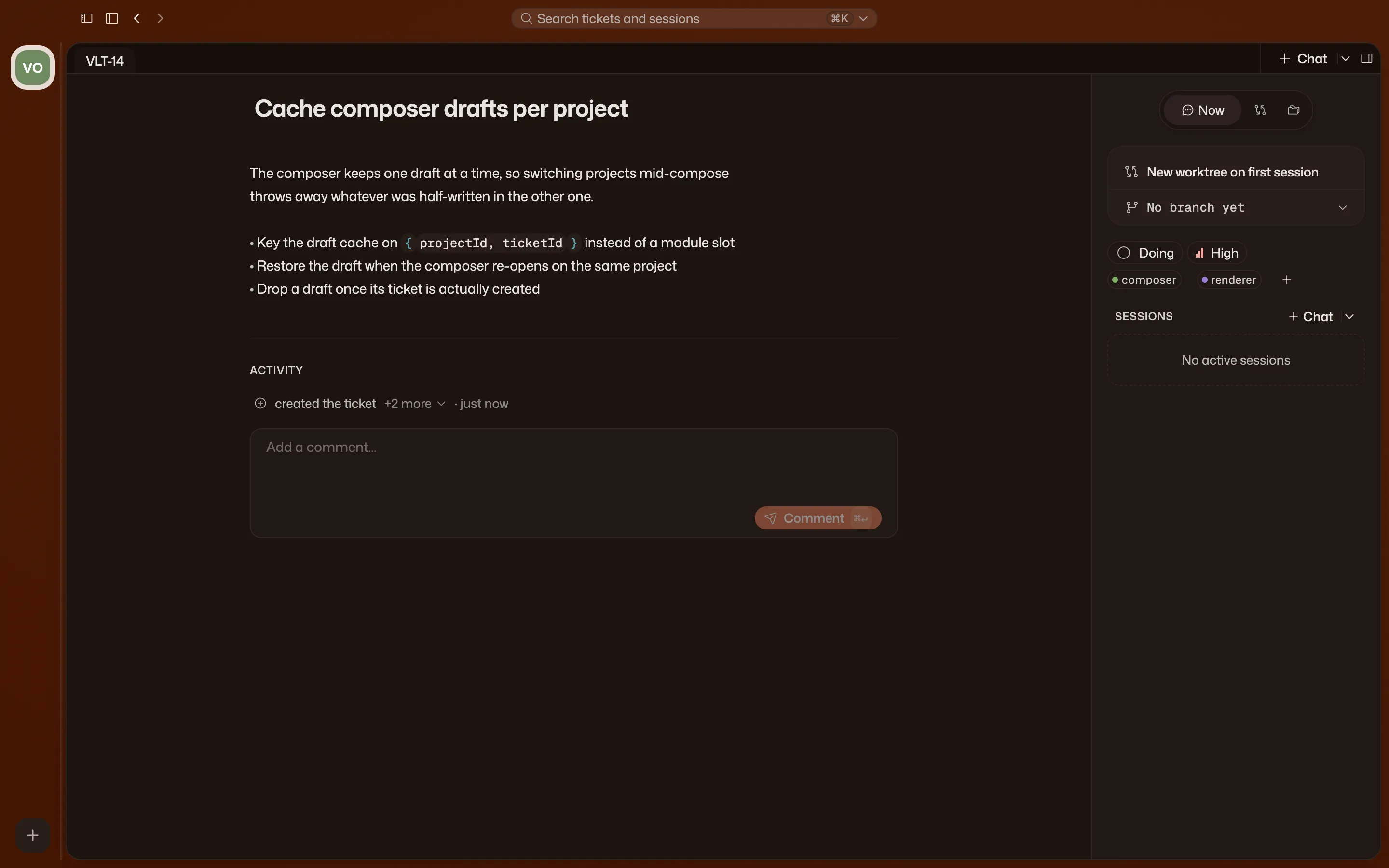
The ticket workspace
Opening a ticket expands it into a workspace: a tab strip across the top and a
rail on the right that switches between four modes. This page covers what
each part shows and how you move between them.

The rail
Section titled “The rail”A vertical icon strip on the right edge switches the rail between four modes. Switching modes never opens, closes, or changes your active tab, so you can check something in Changes without losing your place in a session.
Sessions. The default mode. Lists every session running on the ticket, with a New session button above them and a status dot (Working, Idle, Parked, or Exited) beside each live one. A History drawer below holds ended sessions; past four entries it gets a search box, and a resumable session gets a Resume row in its context menu.
Files. The ticket’s file references and its worktree, in one flat list.
A Referenced section at the top lists every @file reference in the
ticket body. Below it, a Worktree section lists the current directory
of the ticket’s worktree, with a breadcrumb to move around. Click a file to
preview it, double-click to pin it open.
Changes. A flat list of the ticket’s change set: every file changed, added, or removed against the base branch. Click a row to open a diff tab for it. Until the ticket has a worktree, this mode shows “No changes vs base” and points you at Doing instead.
Properties. Status, priority, labels, and the ticket’s git identity, described in Properties below.
The tab strip holds one tab per open surface: the ticket body, plus a tab for each file, diff, and session you’ve opened. The body tab is always first, labeled with the ticket’s display ID, and it can’t be closed. File, diff, and session tabs can all be closed; session tabs are also the only ones you can rename, by double-clicking the tab or using its right-click menu.
Tabs open from deliberate actions elsewhere in the workspace, never on their own:
- Clicking a file in the Files navigator opens it as a preview tab (its label renders in italics) and replaces whatever preview was open. Double-clicking pins it, turning it into a permanent tab that stays open until you close it.
- Typing
@in the ticket body opens a picker over the project’s files; picking one inserts a reference and renders it as a clickable chip. Clicking the chip opens a file tab for it. - Clicking a row in the Changes navigator opens a diff tab for that file.
- The + button on the tab strip, or New session in the Sessions mode of the rail, starts a new terminal and opens it as a session tab.
A file tab that resolved from the ticket’s worktree (rather than the main checkout) shows a small dot next to its label. Closing a file or diff tab with unsaved changes asks whether to save or discard first.
Ticket files vs. project files
Section titled “Ticket files vs. project files”Ticket Files and Project Files look similar but read from different places. Ticket Files, the rail’s Files mode, is scoped to one ticket and reads that ticket’s own worktree, so what you see there reflects the ticket’s branch. Project Files, reached from Files in the sidebar, reads the project’s main checkout and is not scoped to any ticket. Editing a file in Project Files never touches a ticket’s worktree, and editing one in a ticket’s Files mode never touches your main checkout.
The change set and diff view
Section titled “The change set and diff view”The Changes navigator shows the same change set described in the agents and worktrees guide: the ticket’s commits plus its uncommitted changes, measured against its base branch.
Opening a row shows the diff in a tab, with an Inline / Side by side toggle above it. The choice applies to every diff you open, not just the current one, and Volli remembers it as Inline by default.
File references
Section titled “File references”The @ picker in the ticket body is one way to insert a file reference.
The ticket composer, where you write a new ticket before it has a
workspace to open, has a second: a paperclip icon next to the body field
that opens the same file picker as a browsable list, for when you’d
rather search than type @. Either way you get @relative/path text
inserted into the body.
Properties
Section titled “Properties”The Properties mode holds the fields you’d otherwise reach through the board:
- Status moves the ticket between columns, the same as dragging its card.
- Priority and Labels edit inline.
- Branch and Base branch are each editable once, then become read-only. Base branch offers a picker over the project’s local branches.
- Worktree shows the worktree’s path on disk, with a button to reveal it in Finder.
- Pull request holds the commit/push/PR button described in the quickstart, once the ticket has a worktree.
Created and updated timestamps sit at the bottom.